Customer guide
Cleaning inspections, corrective actions and client reports
From your first checklist to a branded monthly report, in eight steps. Every screenshot is the real app, shown with fictional sample data.
Last updated 22 November 2026
Before you start
Inspections, corrective actions, monthly client reports and expiry reminders are part of Sites & Compliance, included on the Pro plan and above. Inviting site supervisors and other team members needs Business or Agency. New to Scansational? The setup guide on your dashboard's Overview walks you through the same steps and ticks them off as you go.
Step by step
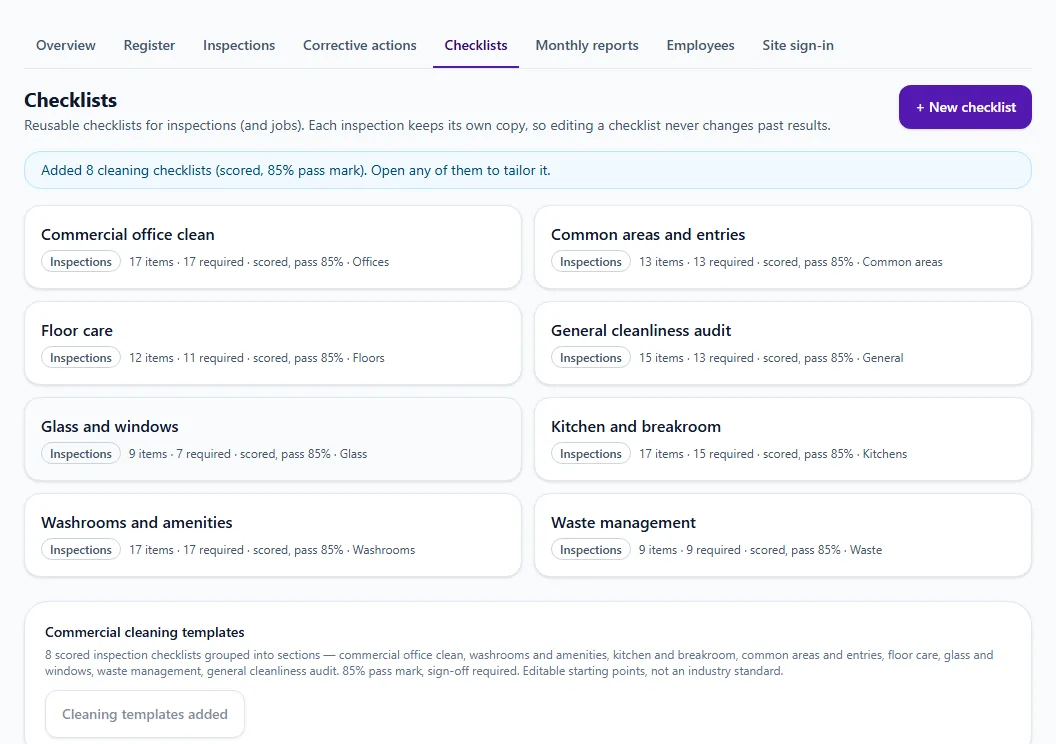
1. Load the ready-made cleaning checklists
Compliance → Checklists → Add cleaning templates
One click adds eight scored checklists (offices, washrooms and amenities, kitchens and breakrooms, common areas, floors, glass, waste and a general audit) with an 85% pass mark and sign-off. Open any of them to change items, sections, weights, which items are required or need a photo, and the pass mark. Each inspection keeps its own copy, so later edits never change past results.
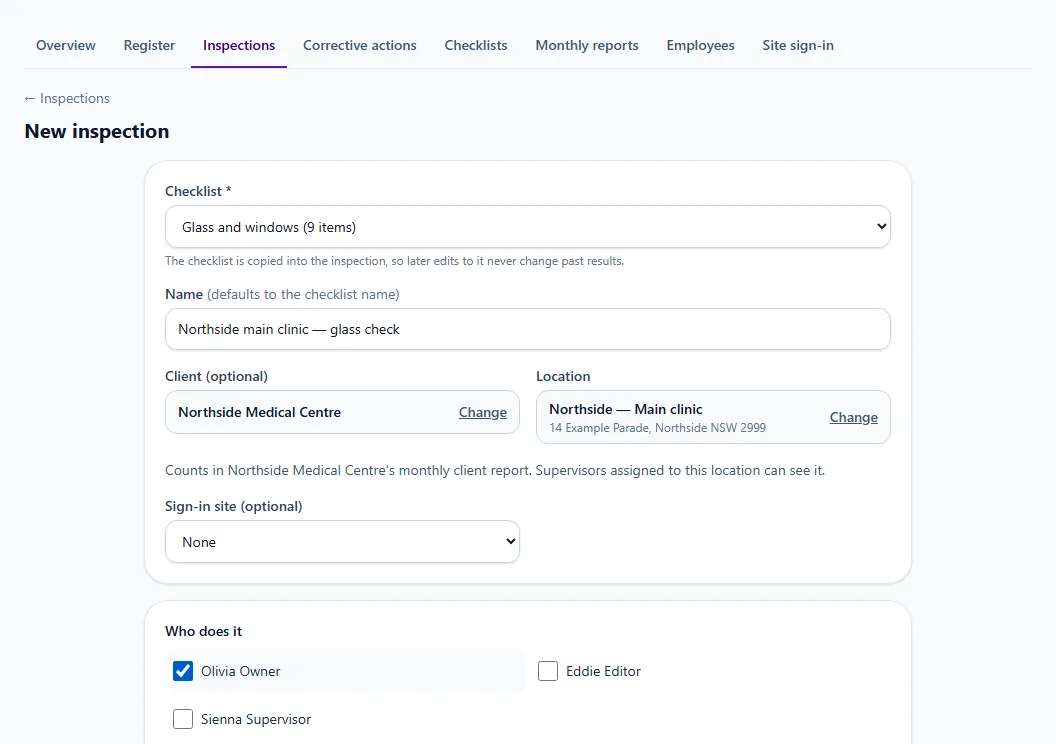
2. Add a client and start an inspection
Compliance → Inspections → New inspection
Choose the checklist and who does it, then the client and the location. Type a new name in either box to add it — it's saved for every future inspection and report (on Business and above you can also manage them under Clients & CRM). Picking the client first narrows the locations to that client's sites, and the form tells you which monthly report the inspection will count in.
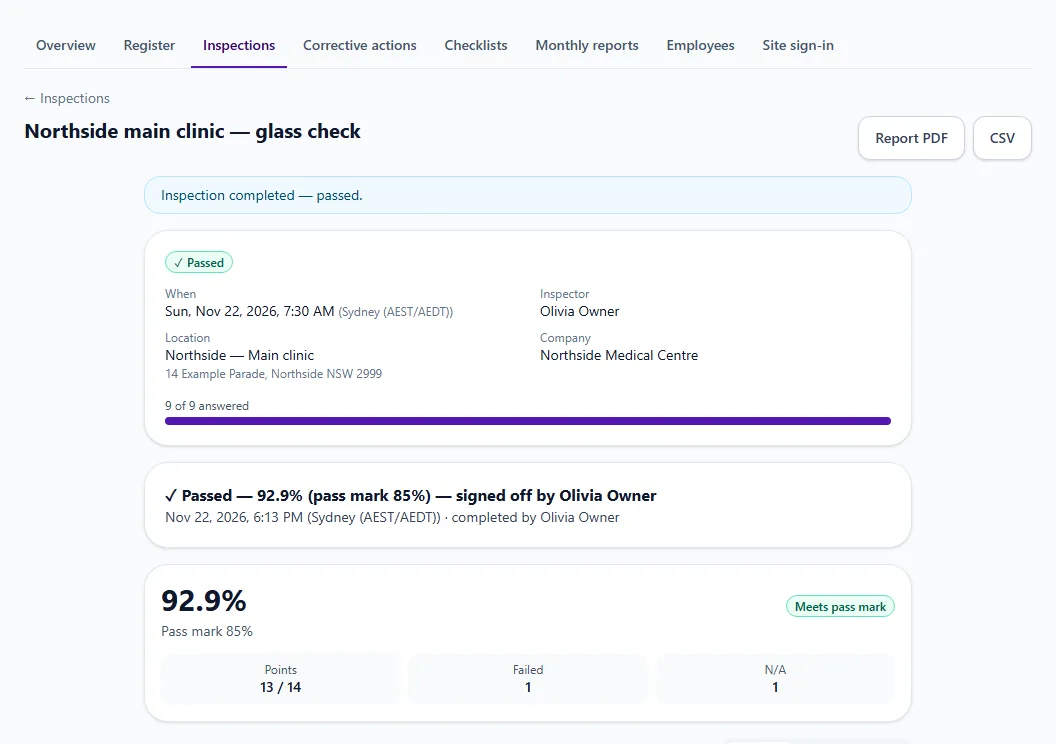
3. Inspect on your phone and sign off
Open the inspection on any phone
Mark each item pass, fail or N/A and add photos — required ones can't be skipped. Completing the inspection shows the weighted score against the pass mark, and it's signed off with your name and the time.
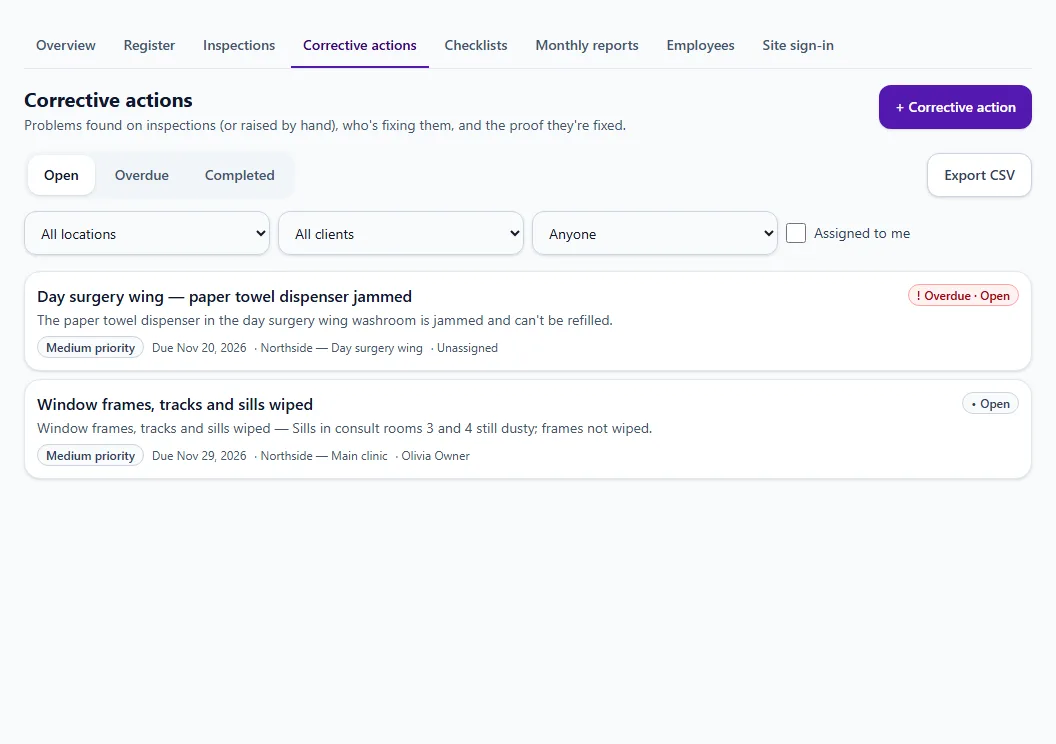
4. Turn failed items into corrective actions
Compliance → Corrective actions
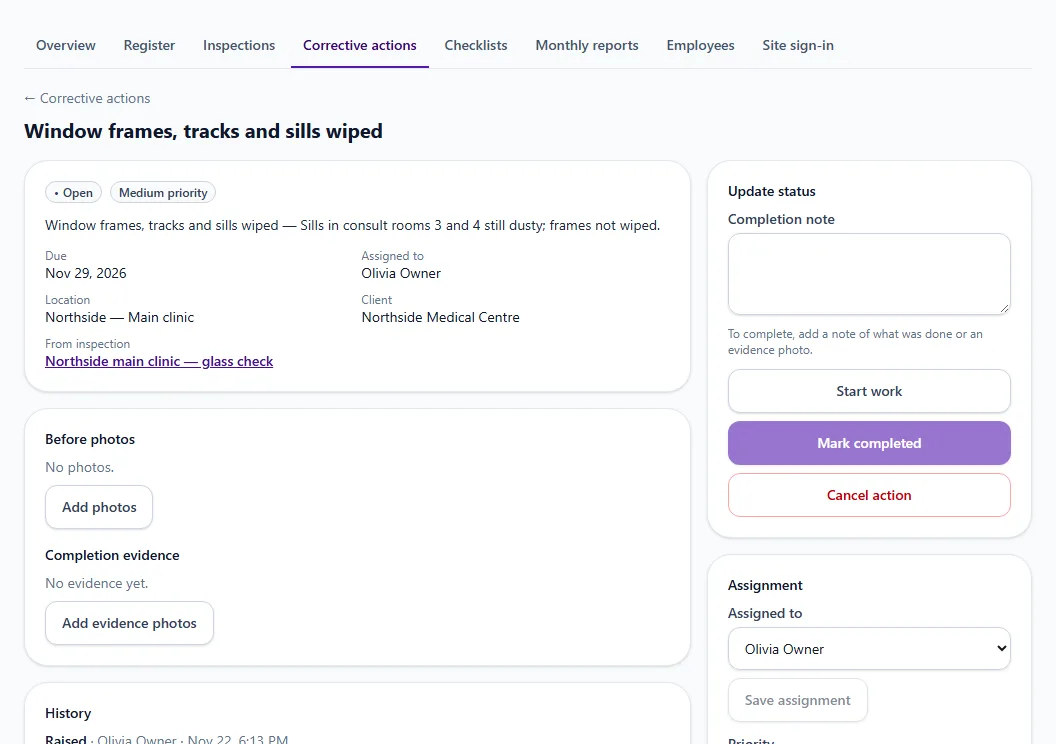
Raise an action from any failed item, or turn on automatic actions in Business settings so they're created when an inspection is completed. Each action has a priority, due date, assignee, before photos and completion evidence. Overdue actions are flagged on the list and the Compliance overview.
5. Close the loop with evidence
Open a corrective action
Whoever fixes it adds a completion note or an evidence photo and marks it completed. The action keeps a history of who did what and when, and links back to the inspection it came from.
6. Send each client a monthly report
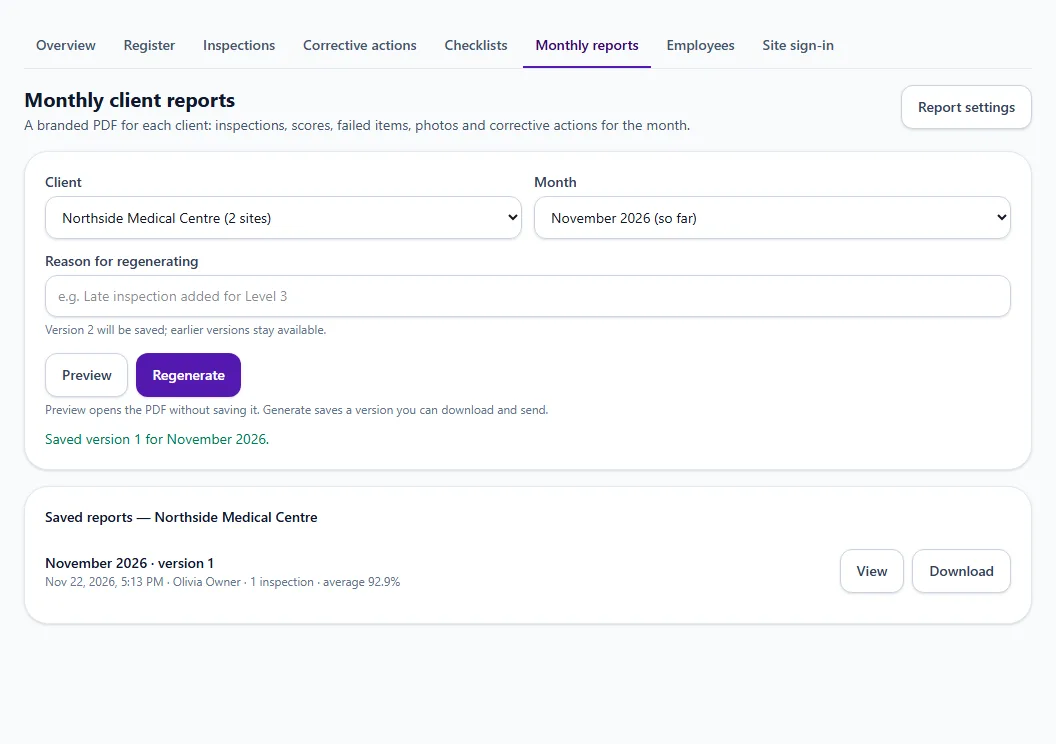
Compliance → Monthly reports
Pick the client and month, preview the PDF, then save it as a version you can download and send. Regenerating keeps earlier versions and asks for a reason. In Report settings, add your logo, company details and an introduction, and optionally generate and email each client's report automatically every month. The report carries your branding, not Scansational's.
7. Set up expiry reminders
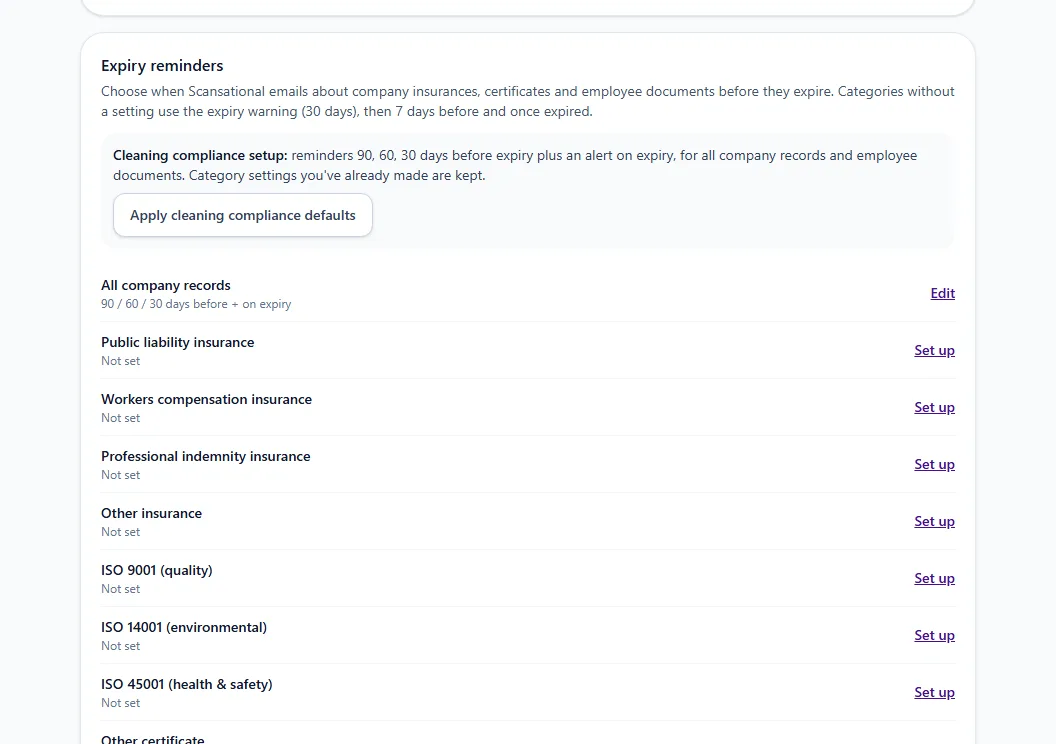
Business settings → Expiry reminders
Apply the cleaning compliance defaults (90, 60 and 30 days before, plus on expiry) or set your own days for each category — public liability, workers' compensation, professional indemnity, ISO certificates and employee documents. Then add your insurances and certificates under Compliance.
8. Keep an eye on the overview
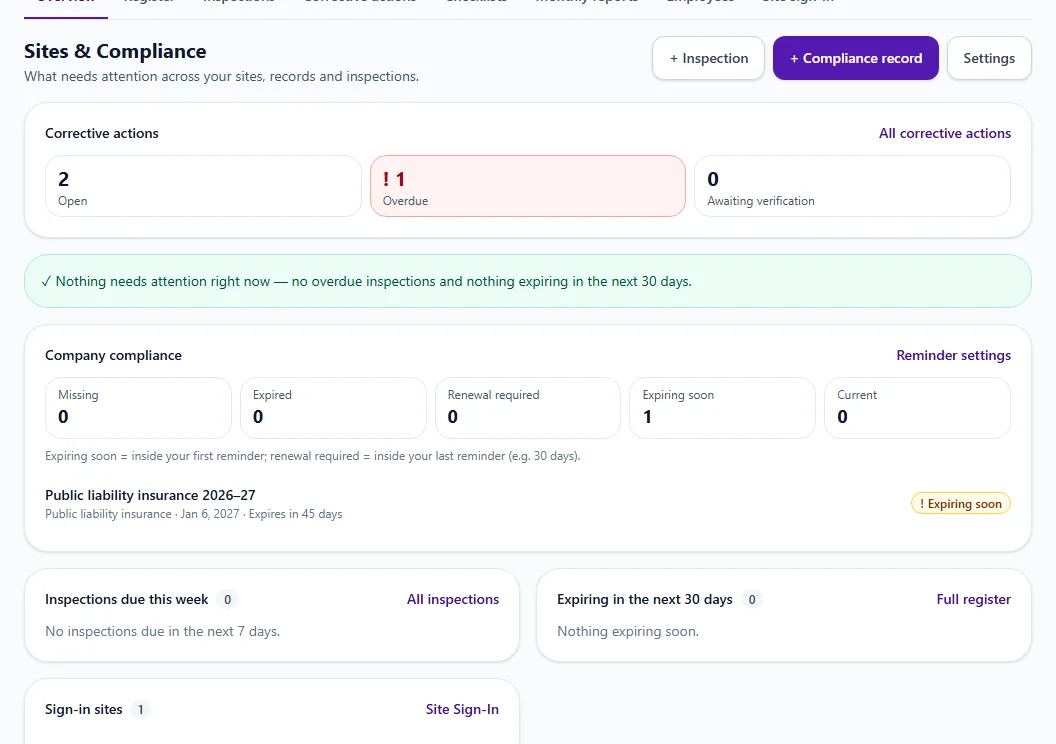
Compliance → Overview
Open and overdue actions, records expiring soon and inspections due this week, in one place.
Site supervisors
Invite a supervisor from Settings → Team and tick the locations they cover. They see a short menu — Inspections and Corrective actions — for those locations only. They can start and complete inspections there and work on corrective actions, but can't open other sites, client reports, employee documents or your QR codes. Change their sites at any time; it takes effect on their next page load.
Employee documents
Under Compliance → Employees, record passports, visas and work rights, police checks and your own document types, with expiry dates and reminders. Only the workspace owner and people given the compliance manager role can see them; everyone else gets a not-found page, and every view and download is in the access log.
Questions? See the cleaning inspection overview or email support.
Try it free
Make unlimited static QR codes with no account, or sign up for one editable dynamic QR — free forever, no card.